Japanese Ramen Simulator: Connection Timeout & Co-op Troubleshooting
Work through connection timeouts and invite failures, check VPN and firewall permissions, and collect useful details for a bug report.
What does MEN-MP-CONNECTION-TIMEOUT mean?
MEN-MP-CONNECTION-TIMEOUT is the error reported by players who could not join a friend. Start with the cause and suggested checks on your own error screen, then record its separate diagnostic ID. Launch-day reports include players without a VPN whose restarts did not help; no universal fix has been verified.
The Steam discussion documenting the problem includes several similar reports. One participant supplied the error code and a separate diagnosisID. Another said both players had already restarted the game and computer.
| Detail to capture | What it identifies |
|---|---|
| Error code | The reported failure category, such as MEN-MP-CONNECTION-TIMEOUT |
Diagnostic ID / diagnosisID |
The separate identifier displayed by your error screen; copy your own value |
| Full message | The cause and steps shown in your installed language |
| Joining stage | Code search, connection attempt, or item synchronization |
An example ID from somebody else’s post is not a replacement for your own. If a code is found but joining stalls later, record that distinction.
Which connection checks are worth doing first?
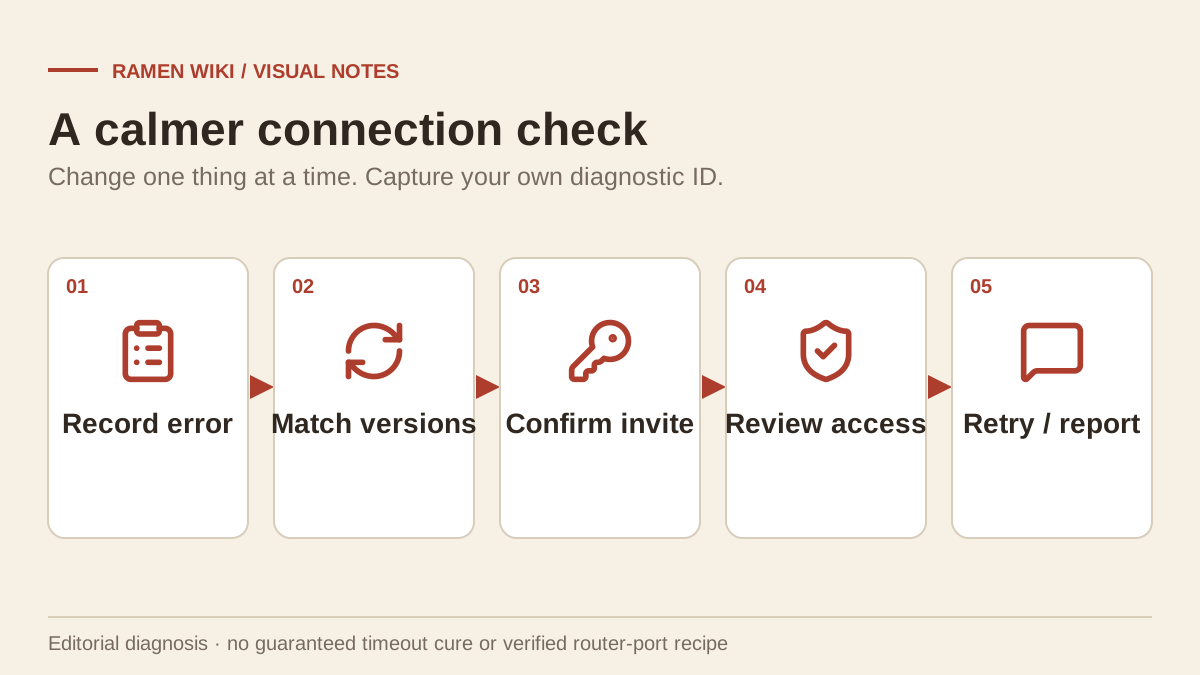
Begin with checks that preserve your existing configuration: update both copies, confirm Steam connectivity, compare the current invitation code and review the game’s displayed error advice. These are diagnostic steps, not confirmed cures. The order below helps identify a repeatable failure without changing several variables at once.
- Have both players install the available update and record their versions. This page covers v0.1.48.17626.
- Confirm Steam is online and the session starter is still present.
- Compare the entered code with the current session code. Follow the friend-invitation sequence for the normal joining path.
- If using a VPN, repeat a test without that connection and note the result. If no VPN is running, record that fact.
- Review application permissions for Steam and the game on the active firewall network profile. Keep the firewall enabled; do not disable all protection.
- Retry once after each change, recording whether the failure stage changes.
The official PC requirements include broadband internet. The checked sources do not provide verified router ports, NAT settings or a port-forwarding recipe for this error.
What did the Day 1 multiplayer patch fix?
Wild Dog’s October 9 patch announcement reports improvements to failure messages, invitation-code searches and joining during item synchronization. It also fixes joining attempts that continued after closing the join interface. These are confirmed changes, but they do not prove that every timeout reported after launch is resolved.
| Symptom | Relevant official change |
|---|---|
| Failure without a useful explanation | Correct display of cause, suggested steps and error code |
| Invitation-code room temporarily not found | Improved automatic searching |
| Join stalls while items synchronize | Fix for joining an ongoing session during synchronization |
| Attempt continues after closing join UI | Fix for continued connection attempts and errors |
The patch also addresses synchronization of beer-cabinet doors, gyoza-griddle lids and items transported by the lift. Object-state mismatches inside a shop are different symptoms from a timeout before entry; identify which one you experienced. The version tracker summarizes related changes.
What should a useful bug report include?
A useful report lets the developer reproduce the failed step: include the version on both machines, your error code, the separate diagnostic ID, the joining stage and a short sequence of actions. State which checks changed the result. A list of unrelated settings changes is much harder to interpret.
Use this compact checklist when posting in the Steam Community or the developer’s support channel:
- Version and Windows version for each participant.
- Whether the session was newly started or already running.
- Whether the code search found the room.
- Exact error text, code and your diagnostic ID.
- VPN status and application-permission checks already performed.
- Whether another player can join the same session.
Do not post the active room code publicly if you intend to keep the session private. Keep saves intact during troubleshooting; consult the save-data guide before making any backup or restore changes.
Known limits: Offline behavior, guest-progress transfer and a guaranteed solution to this timeout remain untested. This page separates player reports from official patch claims and was reviewed on October 10, 2026.
Related Articles
multiplayer
Japanese Ramen Simulator: Co-op Roles, Voice Chat & Kitchen Workflow
Assign practical kitchen roles and organize spatial voice chat, mute and push-to-talk settings for a calmer multiplayer ramen shift.
multiplayer
Japanese Ramen Simulator: How to Invite Friends & Start Co-op
Start a friend co-op session using confirmed invite-code features, understand conflicting player-count claims and prepare before opening.
Was this helpful?
Thanks for the feedback!